How to connect Trainzilla to Claude (step by step)
A short, exact walkthrough: connect your Trainzilla coach account to Claude, verify it worked, and run your first real client workflow — plus what the connector will never do.
This connects your live Trainzilla coach account to Claude, so you can ask about real clients and make real changes from a conversation. It takes about two minutes and you only do it once.
You'll need a Trainzilla coach login and a Claude account. It works on claude.ai in the browser and in the Claude desktop app.
Step 1 — Open Connectors in Claude
In Claude, open Settings → Customize → Connectors.
Connectors used to live under Settings → Connectors. They've moved to Customize. If you land on the old page, Claude shows a link across to the new one.
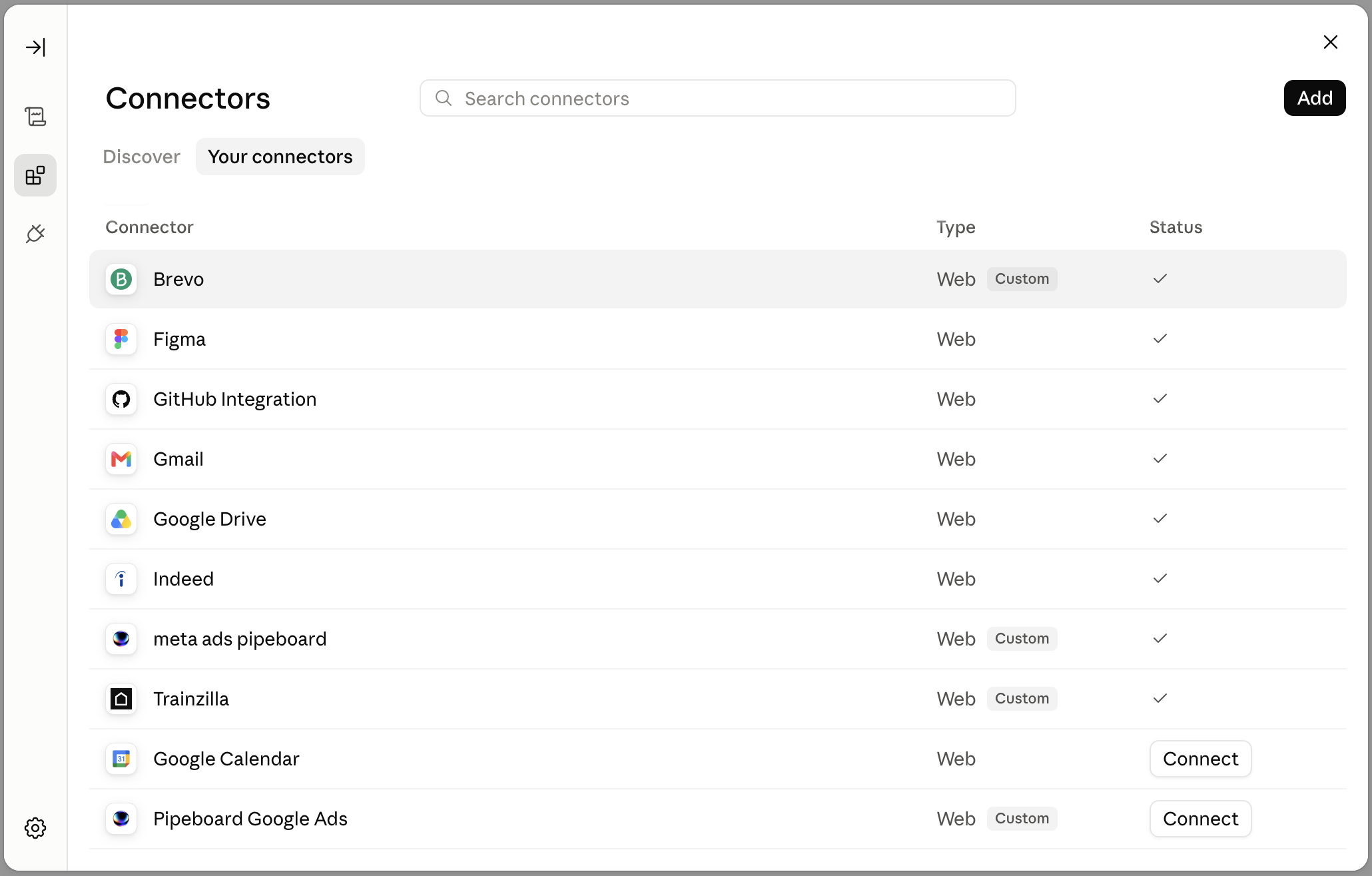
You'll see your existing connectors and a Discover tab of pre-built ones. Trainzilla is added as a custom connector, so ignore the gallery.
Step 2 — Add the Trainzilla connector
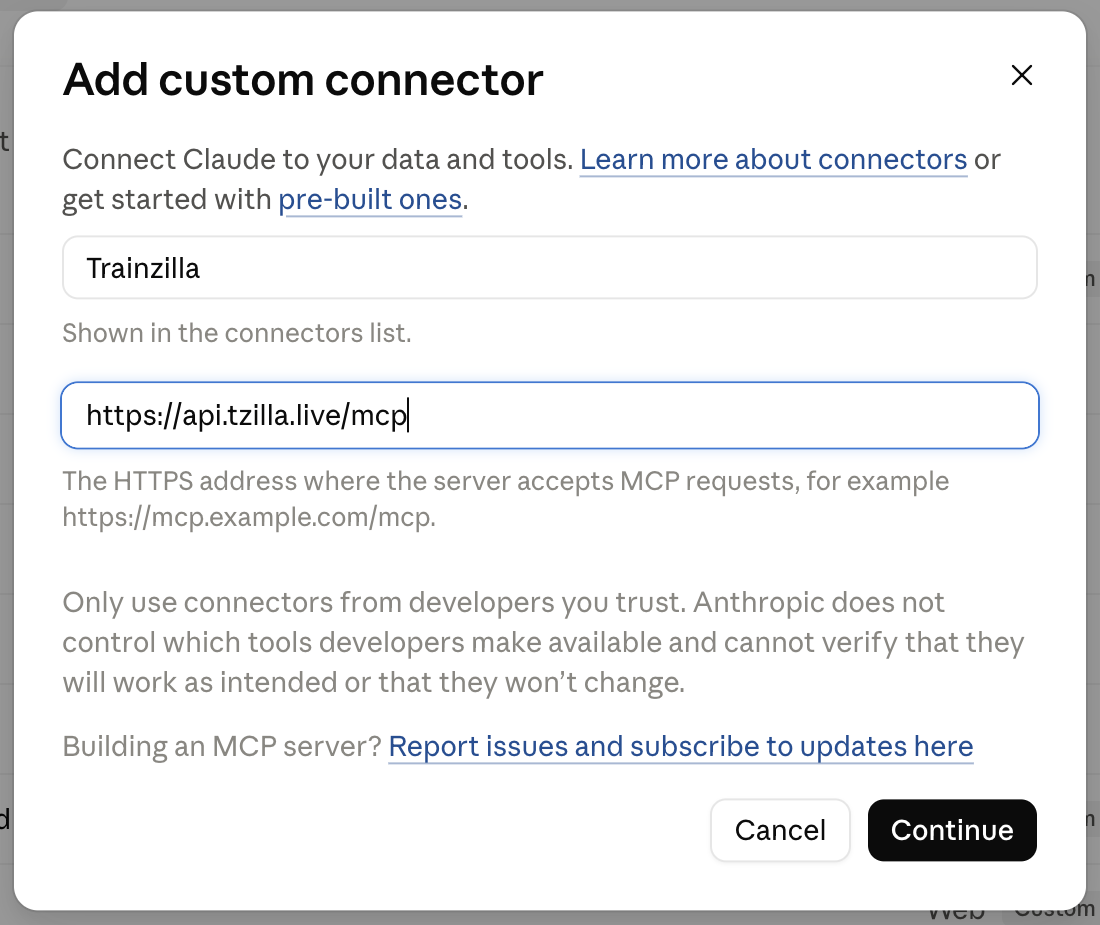
Click Add in the top right. In the Add custom connector dialog, enter the name Trainzilla and the remote MCP server URL https://api.tzilla.live/mcp, then click Continue.
That URL is the only configuration there is. No API keys to generate, no config files to edit, nothing to paste from a terminal.
Step 3 — Sign in and approve access
Claude will send you to Trainzilla to sign in — the same coach login you use for the app. After you sign in, you'll be asked to approve access for Claude.
This is standard OAuth 2.1 with PKCE. Two things worth knowing:
- Claude never sees your Trainzilla password. It receives a scoped token, and Trainzilla's backend decides what that token is allowed to do.
- You can revoke it at any time from the same Connectors screen, and access stops immediately.
Step 4 — Check that it worked
Start a new chat and ask:
Use Trainzilla: who am I, and list my clients.
Claude will call whoami and list_clients, and come back with your coach account and your real client list. That's the handshake confirmed — it's reading your live account, not a demo.
If nothing happens, check that the connector shows a tick under Status on the Connectors screen, and that Trainzilla is enabled for the chat you're in.
Step 5 — Run something real
A few prompts that do actual work on day one:
Weekly sweep
Across all my clients, who's below 70% habit compliance in the last 14 days, and who hasn't checked in this week?
A judgement call, with the numbers
[Client] has stalled for two weeks and flagged poor sleep. Pull her compliance and recovery signals and tell me whether to deload or hold.
Connect your coach account in two minutes
Create your Trainzilla account, then link it to Claude and work your roster in plain language — every change previewed before it saves.
Create your coach accountRecalculate and explain
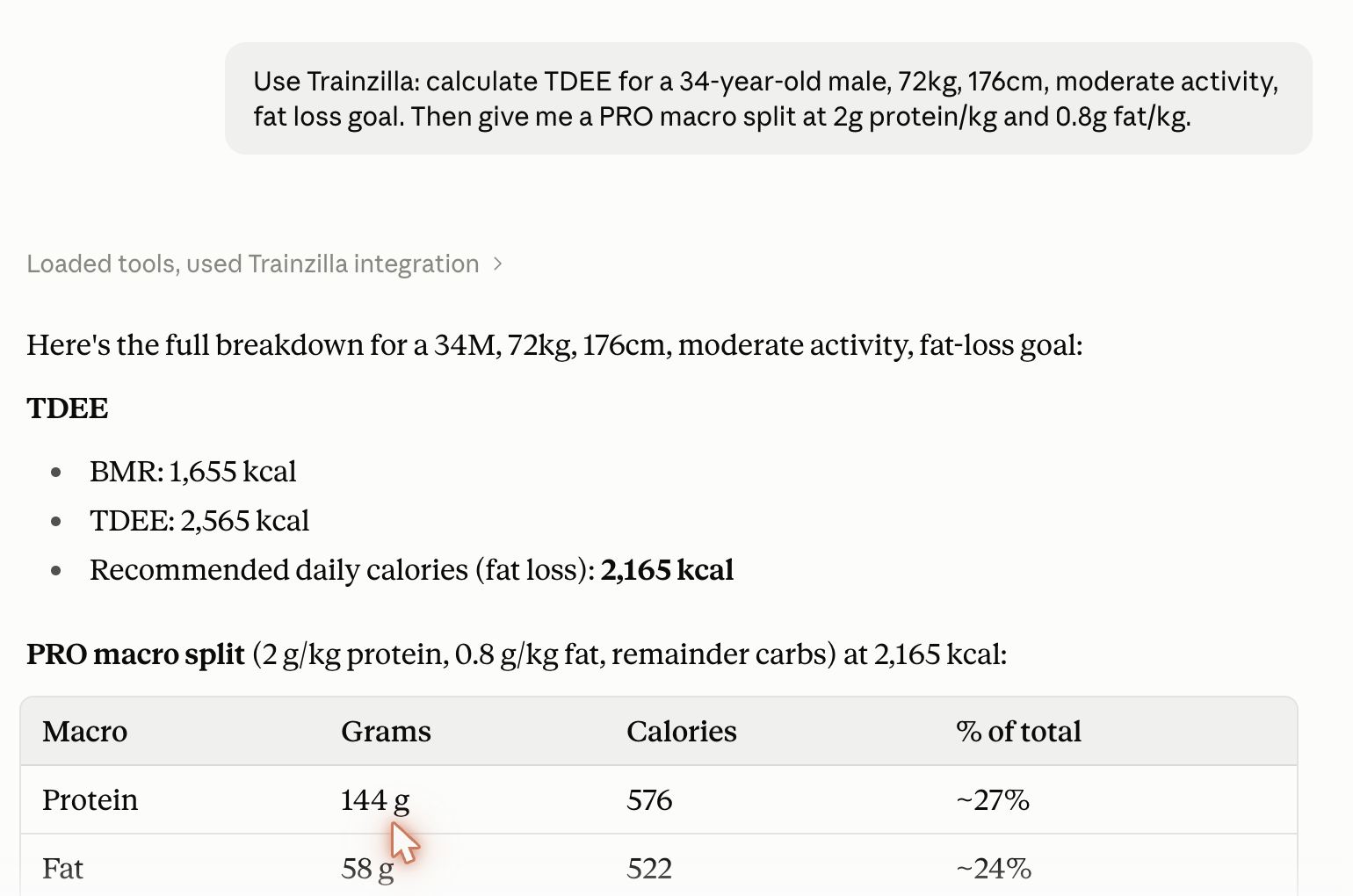
Recalculate [client]'s macros for 2,100 kcal at 2g protein per kg, and draft the explanation I'd send her.
Build a plan from the real catalog
Draft next week's lower-body session for [client], swapping back squats for something knee-friendly.
Exercises come from the actual Trainzilla catalog with a match-confidence score, so you get movements that exist in your library rather than invented ones.
What happens when it wants to change something
This is the part worth reading properly.
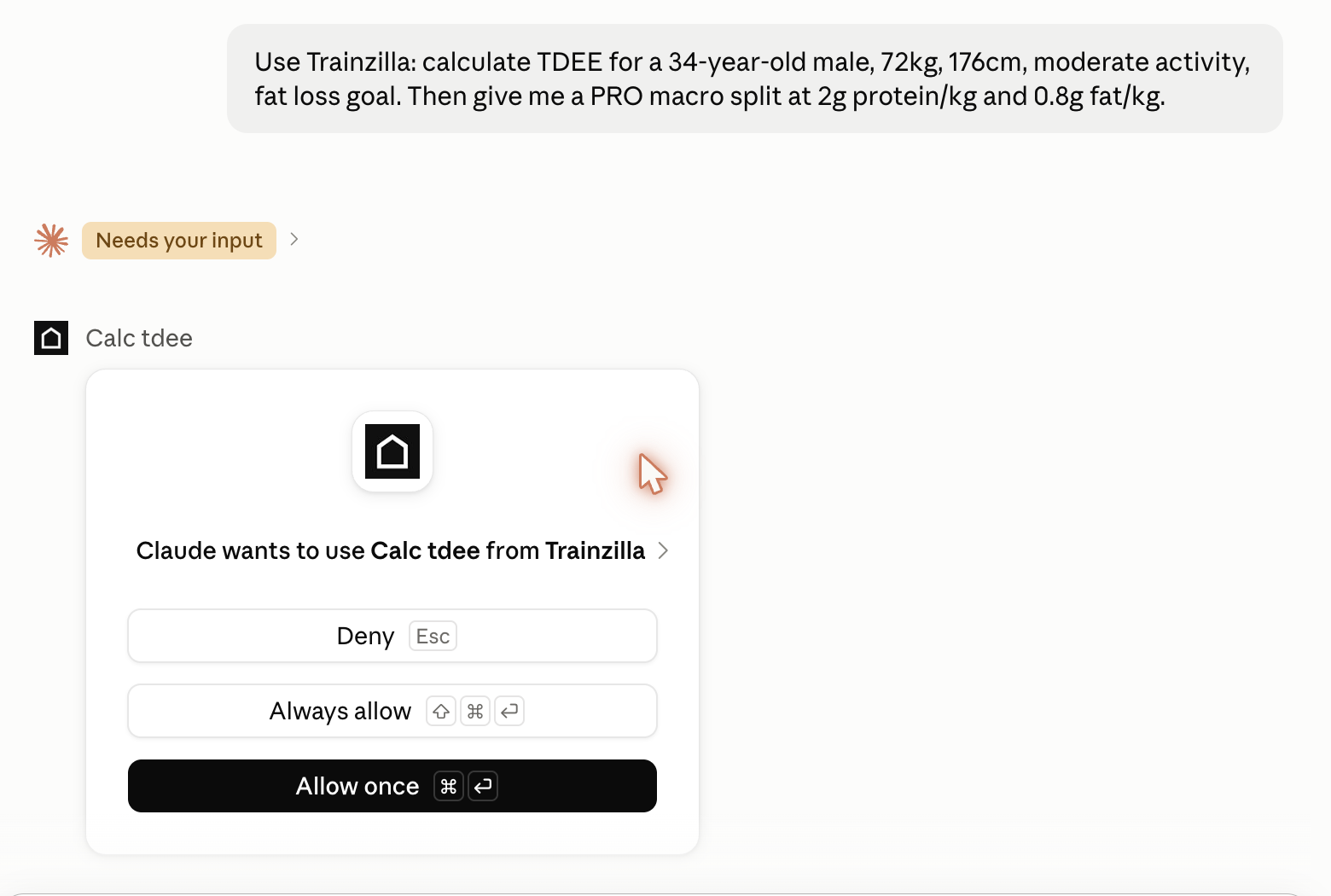
Every write is previewed first. When Claude goes to create a plan, add a habit, schedule a session or message a client, the first call returns a preview — the full thing it would create. Nothing is saved. It only writes after a second, explicit confirmation.
So the loop is always: ask, read the preview, approve. There's no arrangement where a stray sentence quietly rewrites a client's programme.
Some things aren't possible at all. There is no tool for deleting clients, executing payments or refunds, or changing account permissions. Those aren't gated behind a confirmation — they simply don't exist in the connector, so nothing can call them.
Everything runs through the normal API. The connector uses the same GraphQL API as the Trainzilla apps, so every permission and validation rule that applies in the app applies here too.
Troubleshooting
- The connector isn't showing up in my chat. Check the toggle for Trainzilla in the chat's tool menu — connectors can be enabled per conversation.
- It says it can't find my clients. You're probably signed in with a client account rather than a coach account. Ask "who am I" — the answer includes your role.
- I want to disconnect it. Settings → Customize → Connectors → Trainzilla → remove. Access is revoked immediately and nothing in your Trainzilla account changes.
That's it
One URL, one sign-in, and your assistant is working from your real client data with your approval on every change.
If you'd like the reasoning behind how this is built — why writes are previewed, why deletes and payments are deliberately missing — that's in the companion piece here.
Not on Trainzilla yet? [Start free with your first client](https://app.trainzilla.in/register).
Vikram Singh
Senior Fitness Coach with 12+ years of experience keeping clients on track through busy holiday and festival seasons.
Start coaching on TrainZilla today
Free forever for your first client. Bring your whole roster with a one-tap CSV import.
Related Articles
AI agents for coaches: what changes when the AI can actually see your clients
Most AI for fitness is a chatbot that has never met your clients. Here is what changes when your assistant can read your real Trainzilla account, and what we deliberately stopped it from doing.